Introduction to Programming Microcontrollers
This chapter introduces the basic workflow required to program a microcontroller. The focus is not only on installing software, but also on understanding the purpose of each step: writing source code, compiling it, uploading it to the board, and observing the result on the physical hardware.
The examples in this chapter use VS Code, PlatformIO, and the Arduino framework. The microcontroller board used in the AMC Core Kit is the DOIT ESP32 DevKit, which is based on the ESP32 microcontroller.
Ways to Program Microcontrollers
There are several ways to program a microcontroller. The correct approach depends on the board, the manufacturer, the level of hardware control required, and the development environment selected for the project. In general, these approaches can be separated into two broad categories: vendor-specific development and vendor-agnostic frameworks.
Vendor-specific development uses tools and libraries provided by the manufacturer of the microcontroller. For example, Espressif provides the official development framework for ESP32 microcontrollers, commonly known as ESP-IDF (Espressif IoT Development Framework). This framework gives direct access to ESP32-specific features such as Wi-Fi, Bluetooth, timers, FreeRTOS tasks, memory configuration, and low-level peripheral control. It is powerful, but it also expects the programmer to understand more about the internal structure of the microcontroller, in this case the ESP32 microcontroller.
Other manufacturers provide similar toolchains for their own devices. Microchip, formerly Atmel, provides tools for AVR and other microcontrollers. These are commonly associated with boards based on chips such as the ATmega328P, which is in fact the microcontroller in the quite popular Arduino UNO board. STMicroelectronics provides development tools for STM32 microcontrollers, including STM32CubeIDE, STM32CubeMX and STM32CubeProgrammer. These tools are widely used in professional embedded systems, industrial control, robotics, and motor-control applications.
The advantage of vendor-specific development is control. You as the programmer can configure the device in detail and use features that may not be available through vendor-agnostic frameworks. The disadvantage is that this approach is usually less beginner-friendly. It may require knowledge of hardware registers, clock configuration, memory layout, interrupts, device drivers, and manufacturer-specific documentation.
A second approach is to use a vendor-agnostic framework. These frameworks provide a more general programming interface that can be used across different boards and microcontroller families. The most common example is the Arduino framework. Although people often refer to it as the “Arduino language,” it is more accurate to understand it as a simplified C++ programming environment with a large ecosystem of libraries and examples. See Disambiguations.
The Arduino framework provides functions such as pinMode(), digitalWrite(), analogRead(), delay(), and Serial.print(). These functions hide many of the low-level details and make it easier to start writing programs that interact with hardware. This does not mean that Arduino is only for simple projects; it means that it provides a practical starting point. Many concepts learned through Arduino-based development are still relevant when moving later to lower-level embedded programming.
Another vendor-agnostic option is MicroPython, which allows some microcontrollers to be programmed using a Python-like language. MicroPython is useful for quick experimentation and educational work, especially when the goal is to test ideas rapidly. However, for AMC the main workflow uses the Arduino framework through PlatformIO, because it provides a good balance between accessibility, structure, performance, and compatibility with the ESP32 board used in the kit.
Development Environment Used in AMC
Before a microcontroller can be programmed, the correct development environment must be installed. A development environment is the collection of tools used to write, compile, upload, and debug code.
In this chapter, the editor is Visual Studio Code, usually called VS Code. VS Code is not itself a microcontroller development environment, but it becomes one when extended with the correct tools. The tool used for this purpose is PlatformIO.
PlatformIO is an embedded development environment that runs inside VS Code. It manages board definitions, frameworks, compilers, upload tools, libraries, and project configuration. Instead of manually installing several separate tools for the ESP32, PlatformIO downloads and organizes the required components automatically.
This is especially useful in a teaching environment because it gives all students a consistent workflow. Once PlatformIO is installed, the same basic process can be used for many different boards and microcontroller families.
Setting Up VS Code and PlatformIO
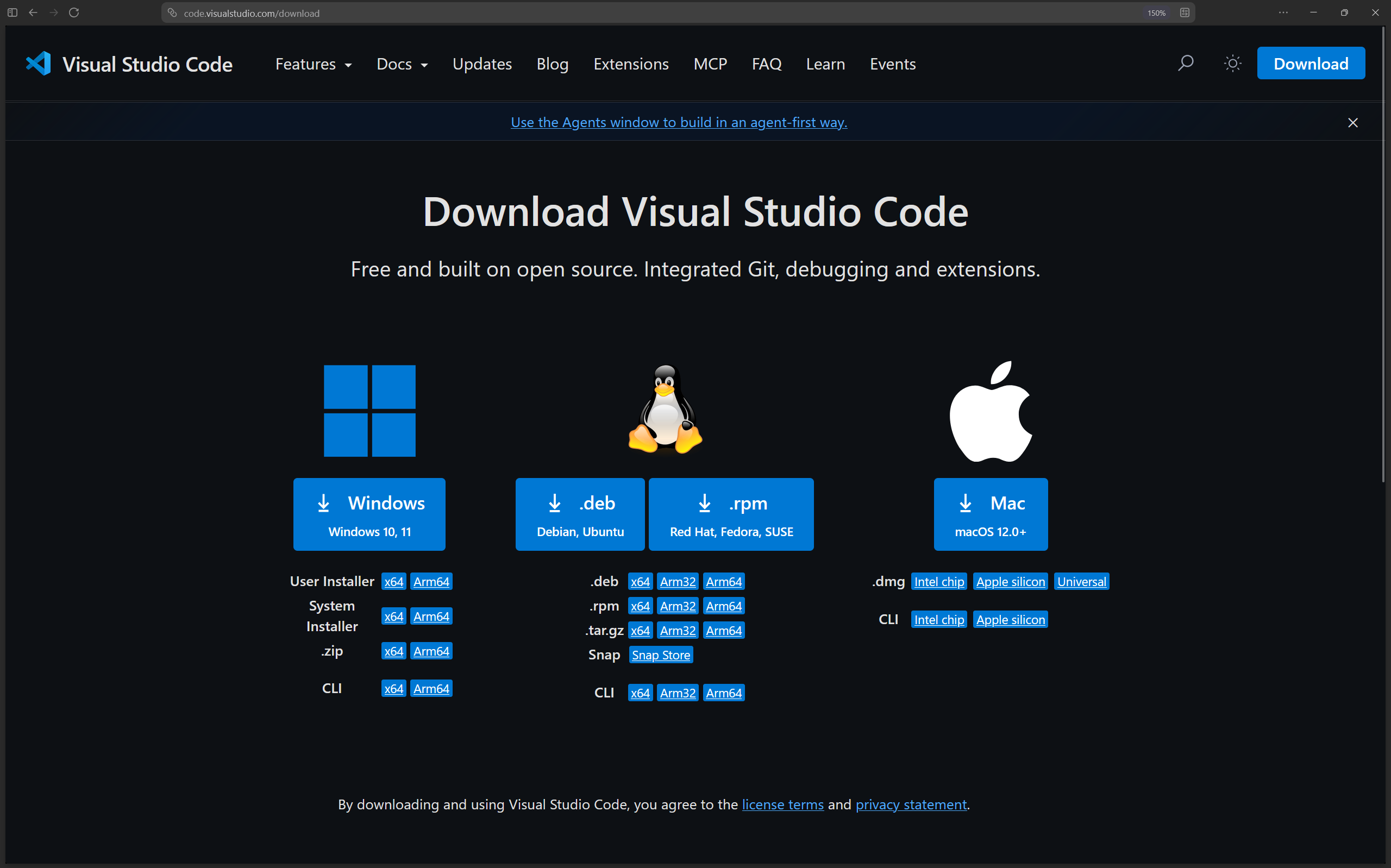
The first part of the setup is to install VS Code. Go to the official VS Code download page and select the installer for your operating system.
 |
|---|
| VS Code download page. |
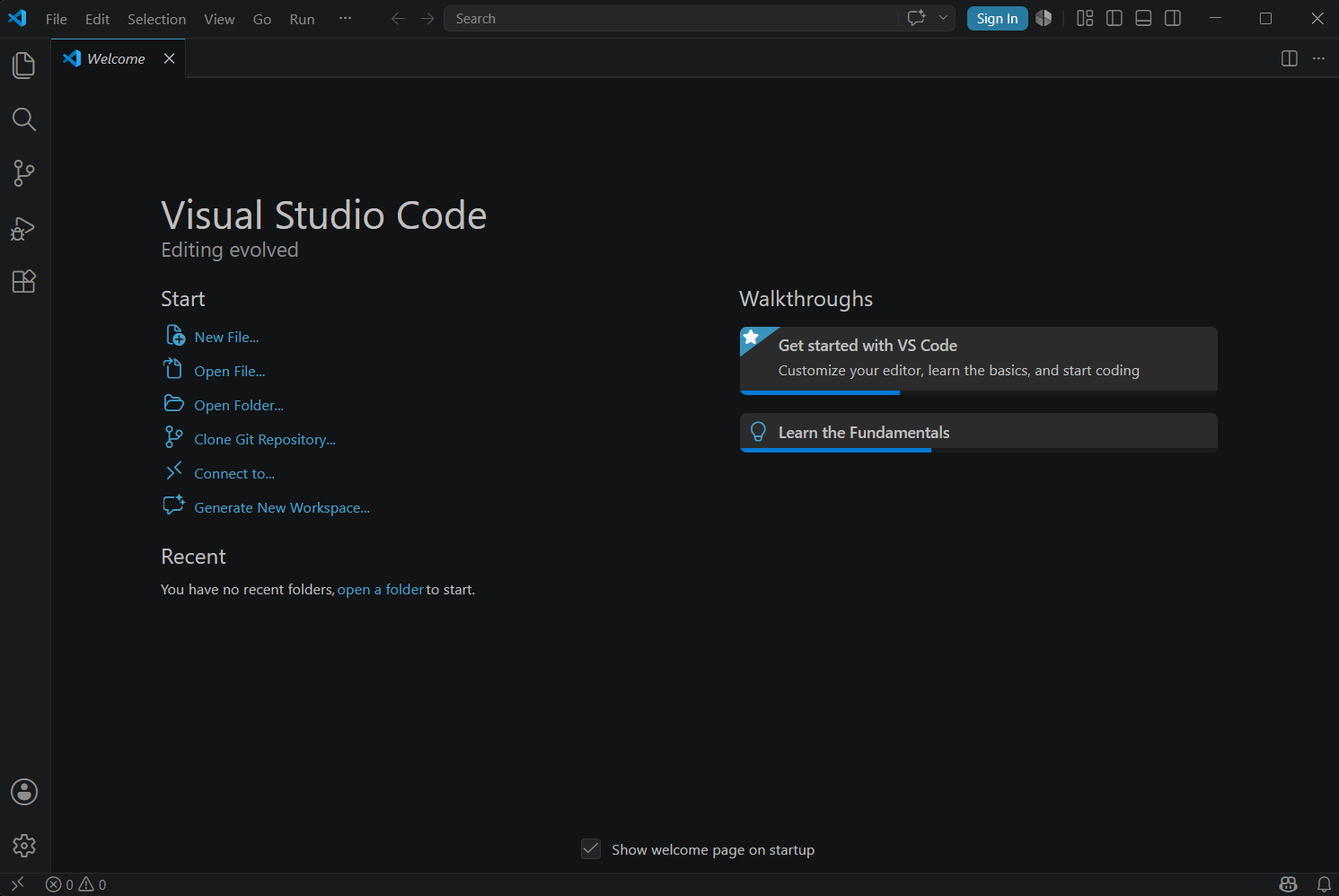
After downloading the installer, run it and follow the installation wizard. The default options are usually sufficient. Once the installation is complete, open VS Code. At this point, VS Code is only a general-purpose editor. The microcontroller development tools will be added in the next steps.
 |
|---|
| VS Code installed and opened. |
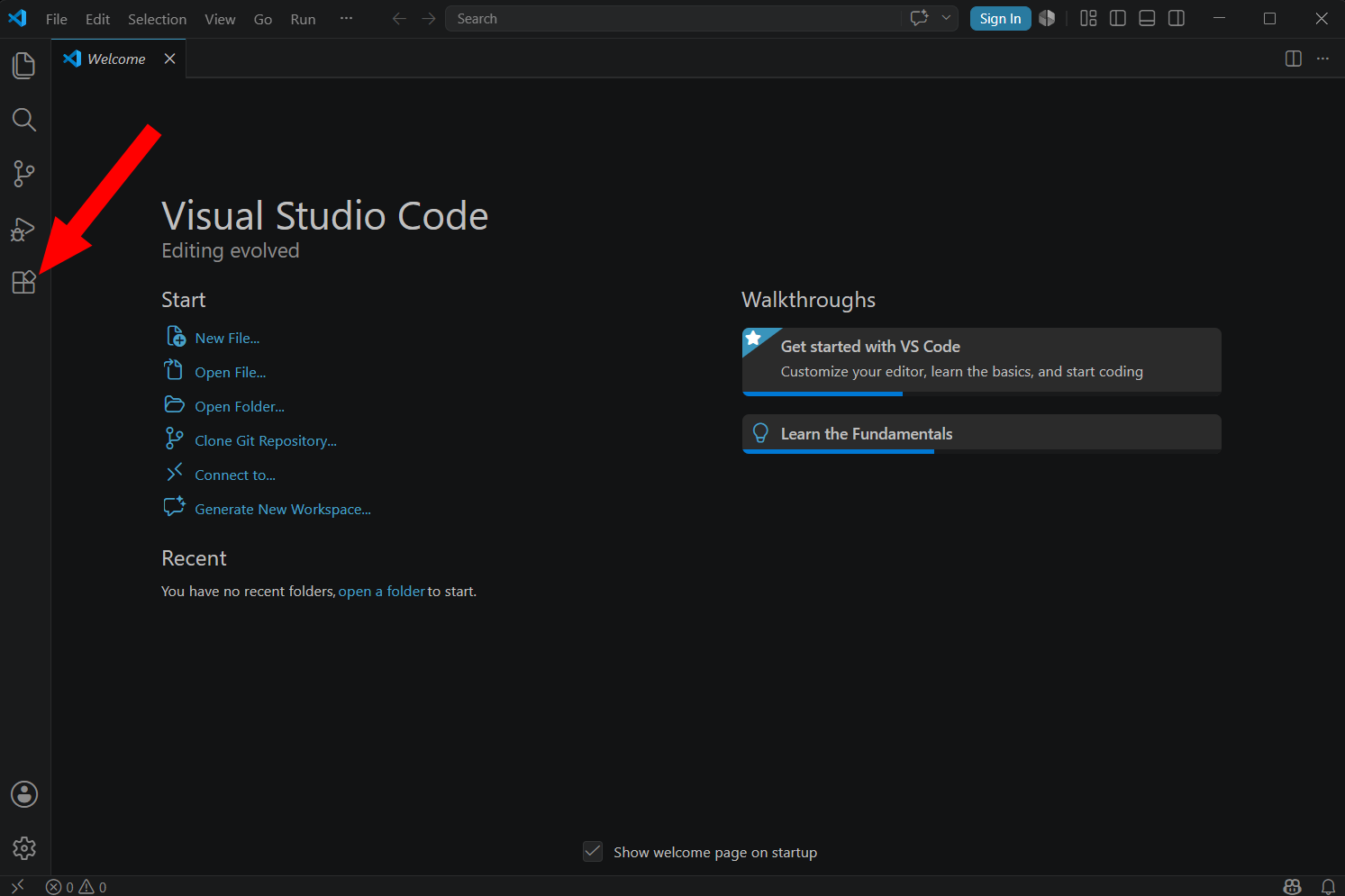
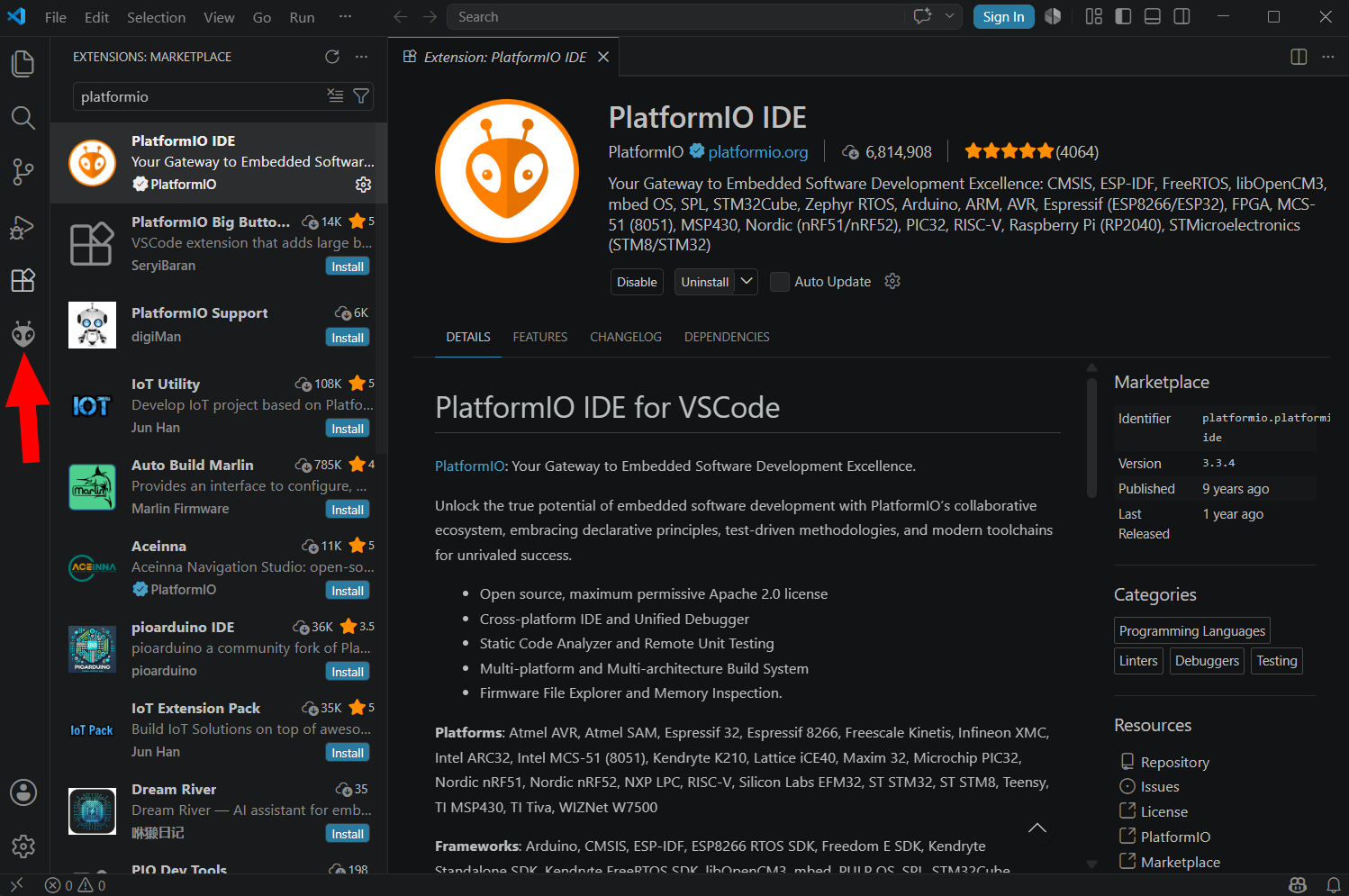
Inside VS Code, open the Extensions panel from the left-side toolbar. Extensions are add-ons that provide extra functionality. In this case, the required extension is PlatformIO IDE.
 |
|---|
| VS Code extensions panel. |
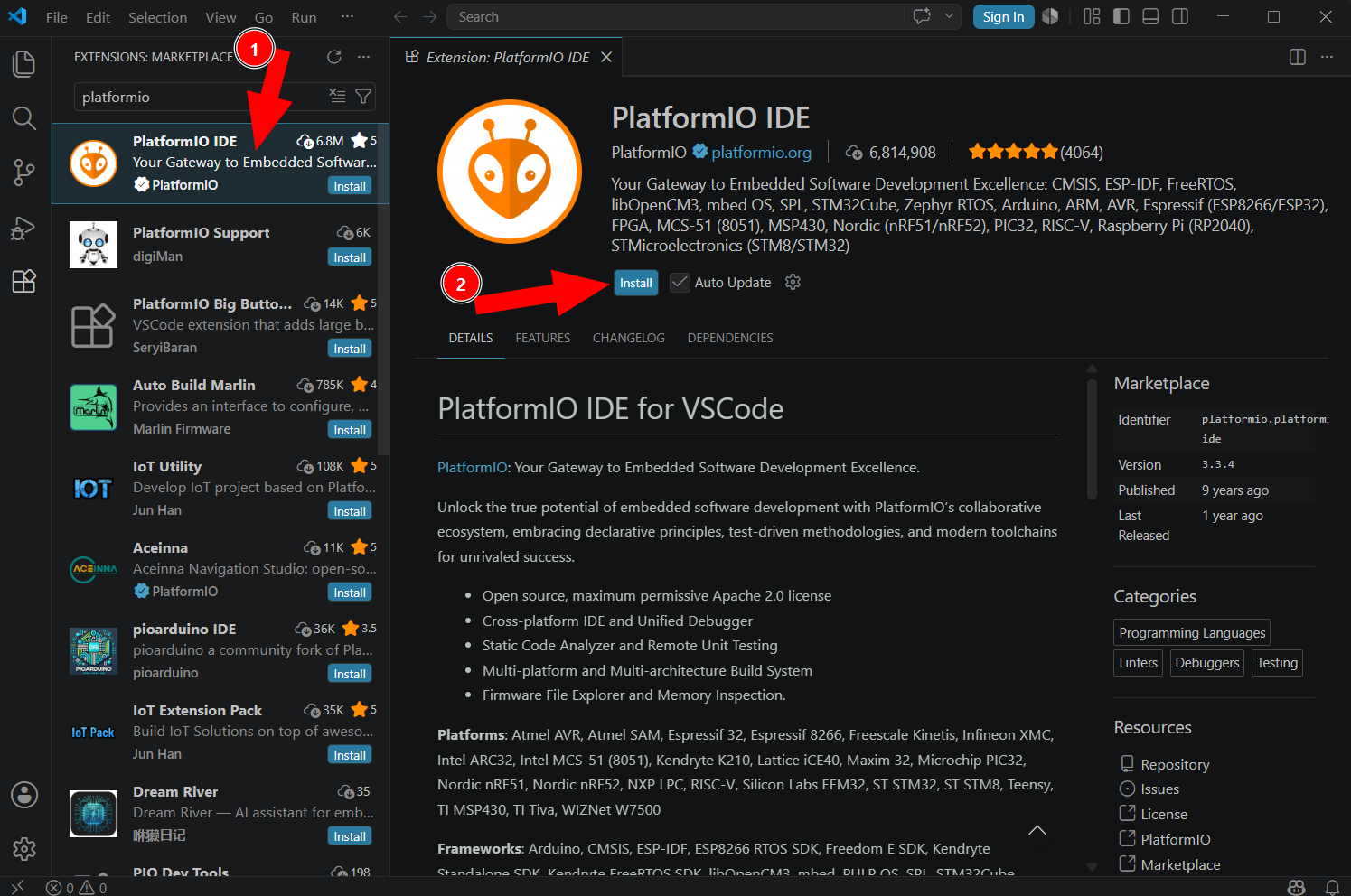
Search for PlatformIO and install the PlatformIO IDE extension. This extension adds the PlatformIO interface to VS Code and provides the tools needed to create, compile, and upload embedded projects.
 |
|---|
| Search for and install the PlatformIO IDE extension. |
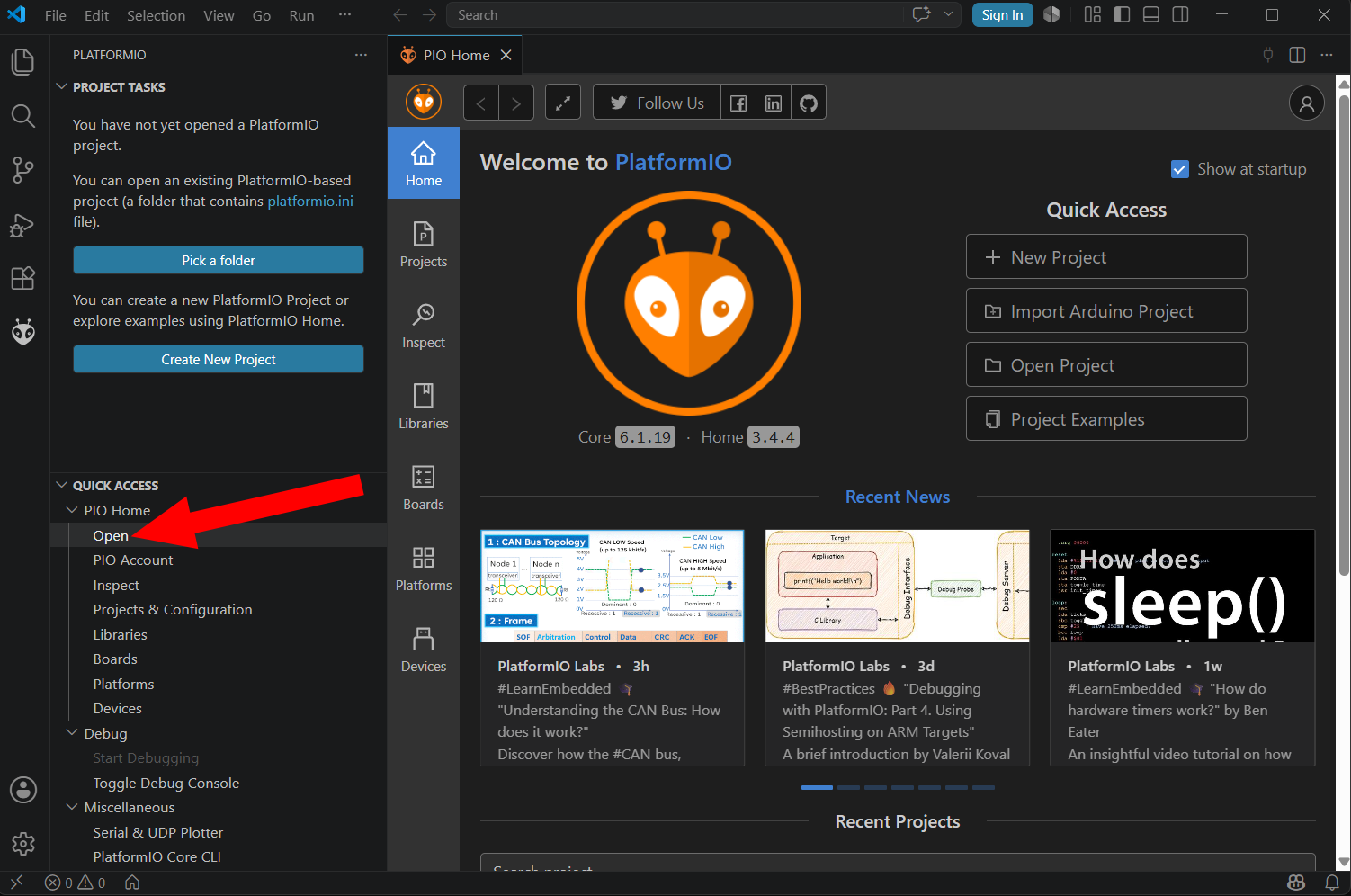
After the extension is installed, a PlatformIO icon appears in the left-side panel. Open it. The first time PlatformIO starts, it may take a few minutes to initialize. During this process, PlatformIO prepares its internal environment and may download additional tools required for embedded development.
 |
|---|
| Open PlatformIO for the first time. |
When PlatformIO finishes loading, the development environment is ready. The next step is to create a project for the ESP32 board.
Creating the First PlatformIO Project
A PlatformIO project contains all the files required to build and upload a program for a specific microcontroller board. This includes the source code, configuration file, libraries, and build folders generated by PlatformIO.
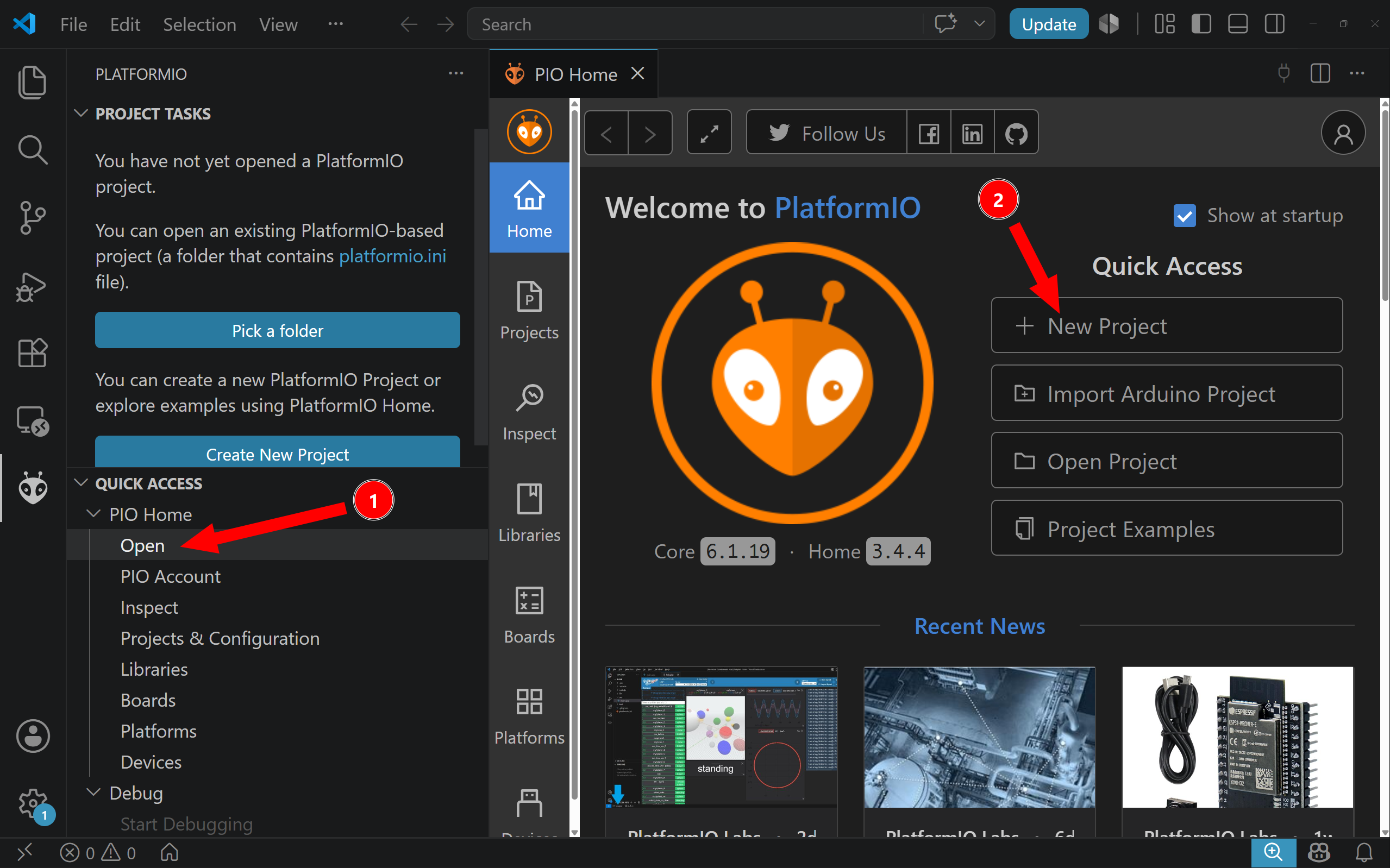
Open PlatformIO Home and click Open to access the main PlatformIO menu.
 |
|---|
| Open the PlatformIO main menu. |
From the PlatformIO Home screen, create a new project. PlatformIO will open a project wizard where the basic project information must be entered.
 |
|---|
| Create a new PlatformIO project. |
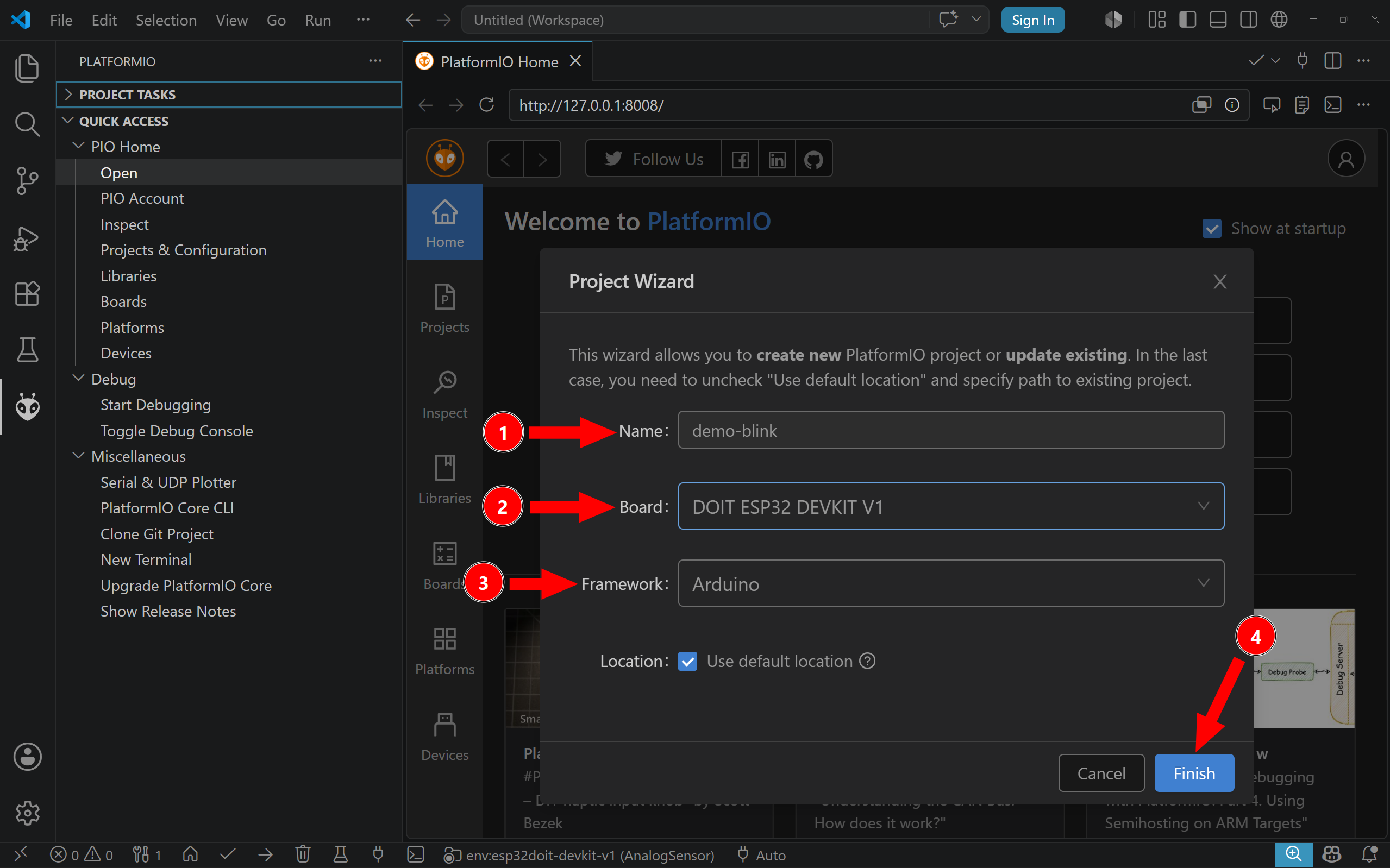
The project name can be any clear name that identifies the purpose of the project. In this example, the project is called demo-blink. Short and descriptive names are recommended, because microcontroller projects tend to multiply quickly during experimentation.
The board selection is more important. It tells PlatformIO which physical board will receive the program. For the AMC Core Kit, select DOIT ESP32 DEVKIT V1. This option corresponds to the ESP32 development board used in the kit. Some boards are electrically or mechanically similar to boards from other vendors, but the selected board must still match the actual target as closely as possible, because PlatformIO uses this setting to choose the correct upload method, memory layout, and build configuration.
The framework determines the programming environment used by the project. In this chapter, select Arduino. For the ESP32, another possible option is the vendor-specific Espressif framework, ESP-IDF. ESP-IDF is useful for more advanced ESP32 development, but the Arduino framework is the expected starting point for AMC exercises.
 |
|---|
| PlatformIO project setup. |
After entering the project information, click Finish. The first time a project is created for a particular board, PlatformIO may take several minutes to download the required platform packages, compiler, board files, and framework files. This is normal. Later projects using the same platform usually open faster because the required tools are already installed.
Understanding the PlatformIO Project Structure
Once the project has been created, VS Code shows the project folder in the file explorer. A minimal PlatformIO project contains several folders, but only a few of them are important at the beginning.
include/          Header files for the project
lib/              Project-specific external libraries
src/              Source code of the project
test/             Test files, when unit testing is used
platformio.ini    Project configuration file
The src folder contains the source code that will be compiled and uploaded to the board. For a basic Arduino-style project, the main file is usually called main.cpp. This is where the program is written.
The platformio.ini file is the project-level configuration file. It tells PlatformIO which board, platform, and framework are being used. A typical configuration for the DOIT ESP32 DevKit using the Arduino framework looks like this:
[env:esp32doit-devkit-v1]
platform = espressif32
board = esp32doit-devkit-v1
framework = arduino
The line platform = espressif32 tells PlatformIO that the project targets an Espressif ESP32 platform. The line board = esp32doit-devkit-v1 identifies the specific development board. The line framework = arduino tells PlatformIO to compile the project using the Arduino framework.
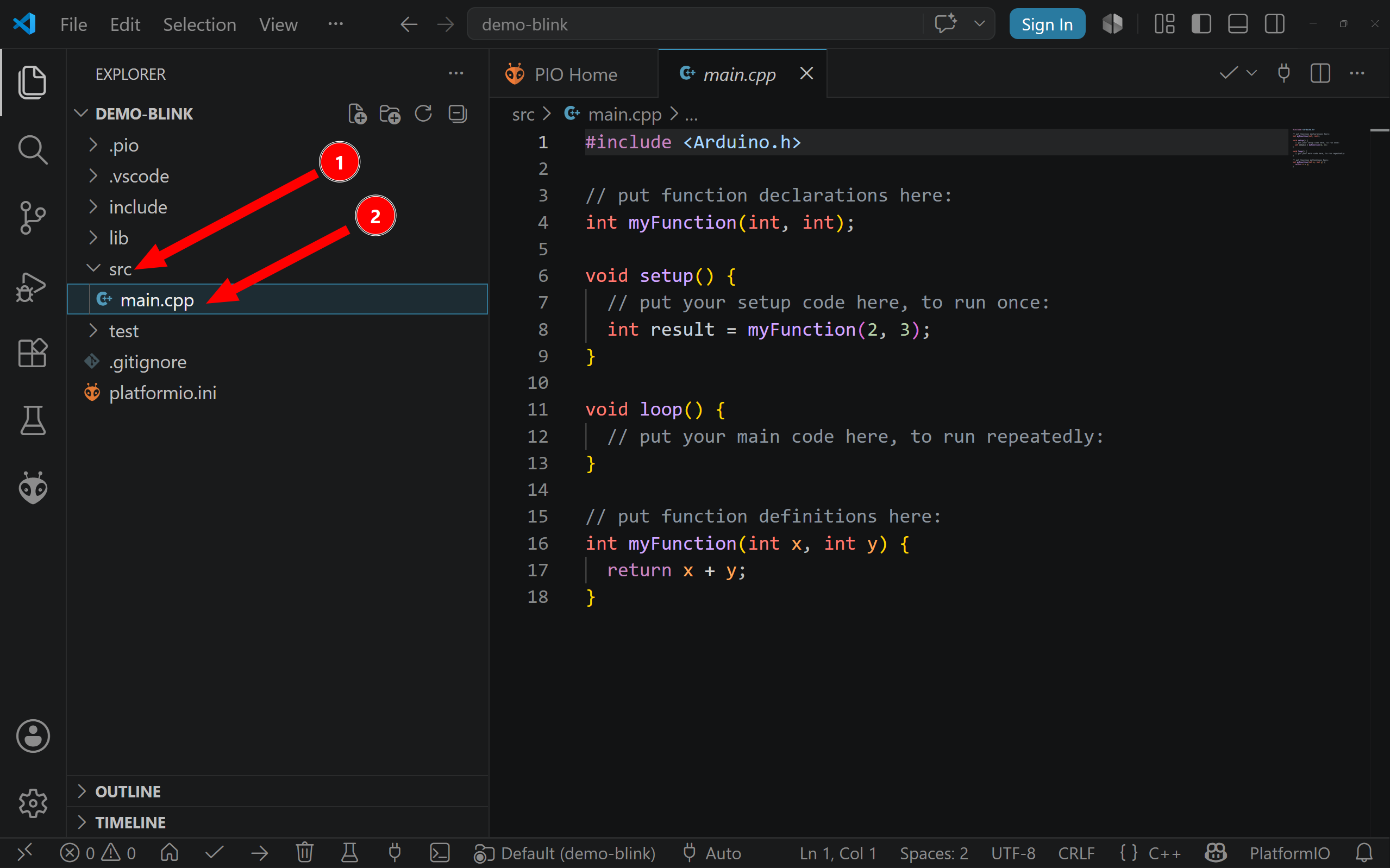
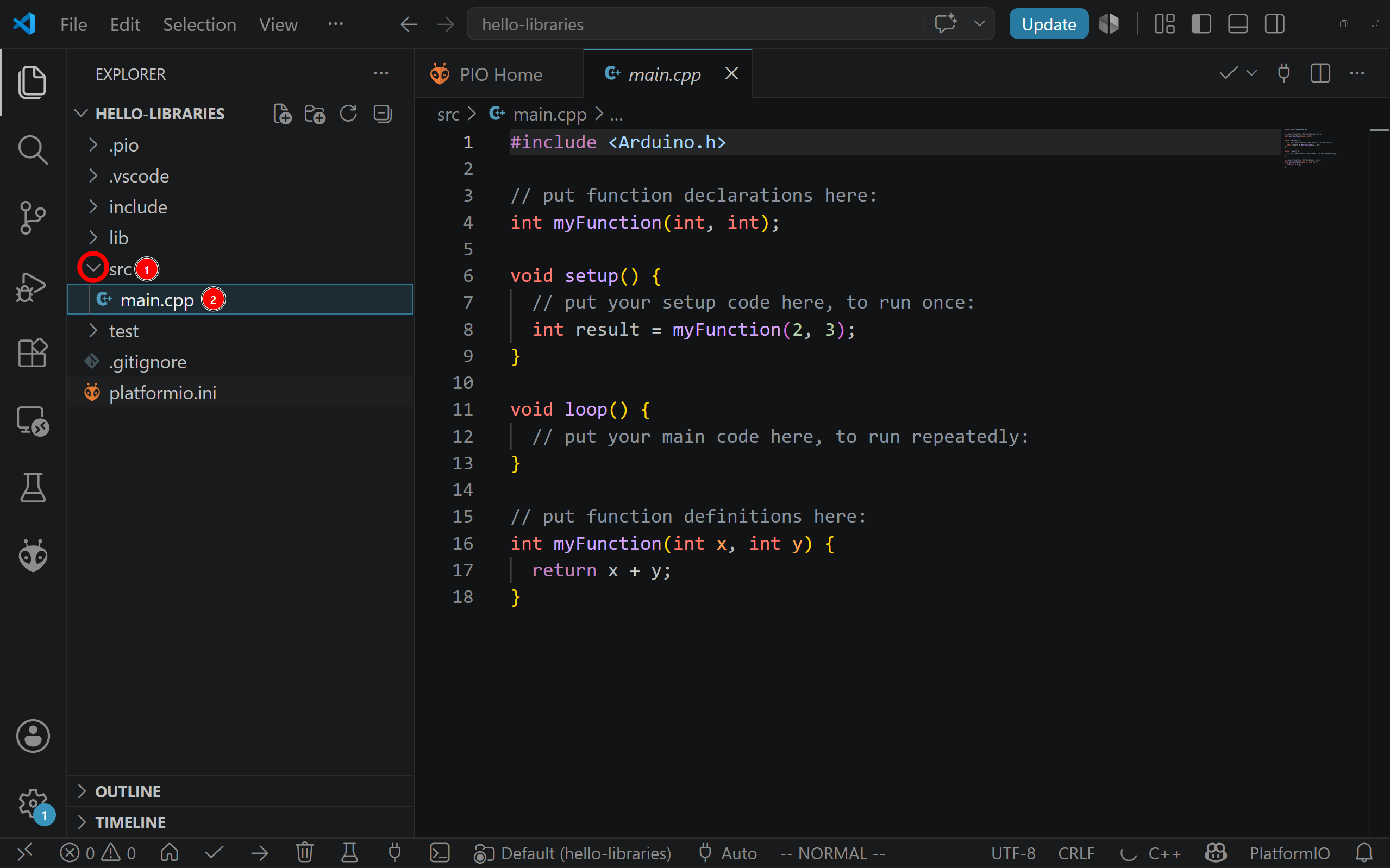
To open the main source file, expand the src folder and click main.cpp.
 |
|---|
Open main.cpp inside the src folder. |
Depending on the PlatformIO template version, the default main.cpp file may include example code or a sample function. For example, it may contain a function named myFunction(). This function is only included to demonstrate that additional functions can be defined in the program. It is not required for the microcontroller to work, and it can be removed when writing your own code.
The Basic Programming Workflow
Programming a microcontroller follows a repeated cycle. First, the source code is written in the editor. Then the code is compiled. If compilation succeeds, the compiled program is uploaded to the microcontroller. After upload, the board runs the program, and the result is tested on the physical hardware.
This cycle is repeated many times during development. Embedded programming is rarely written perfectly in one attempt. A typical workflow is to make a small change, compile the program, upload it, test the behavior, and then continue. This makes problems easier to locate because each change is small and controlled.
The word compile has a specific meaning. The code written by the programmer is human-readable C++ source code. The microcontroller cannot execute that text directly. During compilation, the compiler translates the source code into machine instructions for the target device. PlatformIO also links the program with the necessary Arduino and ESP32 framework code, producing a firmware file that can be stored in the microcontroller memory.
The words program, flash, and upload are often used to describe the same process. They mean transferring the compiled firmware from the computer into the memory of the microcontroller. Once this transfer is complete, the microcontroller resets and starts executing the new program.
Minimal Arduino (framework) Program
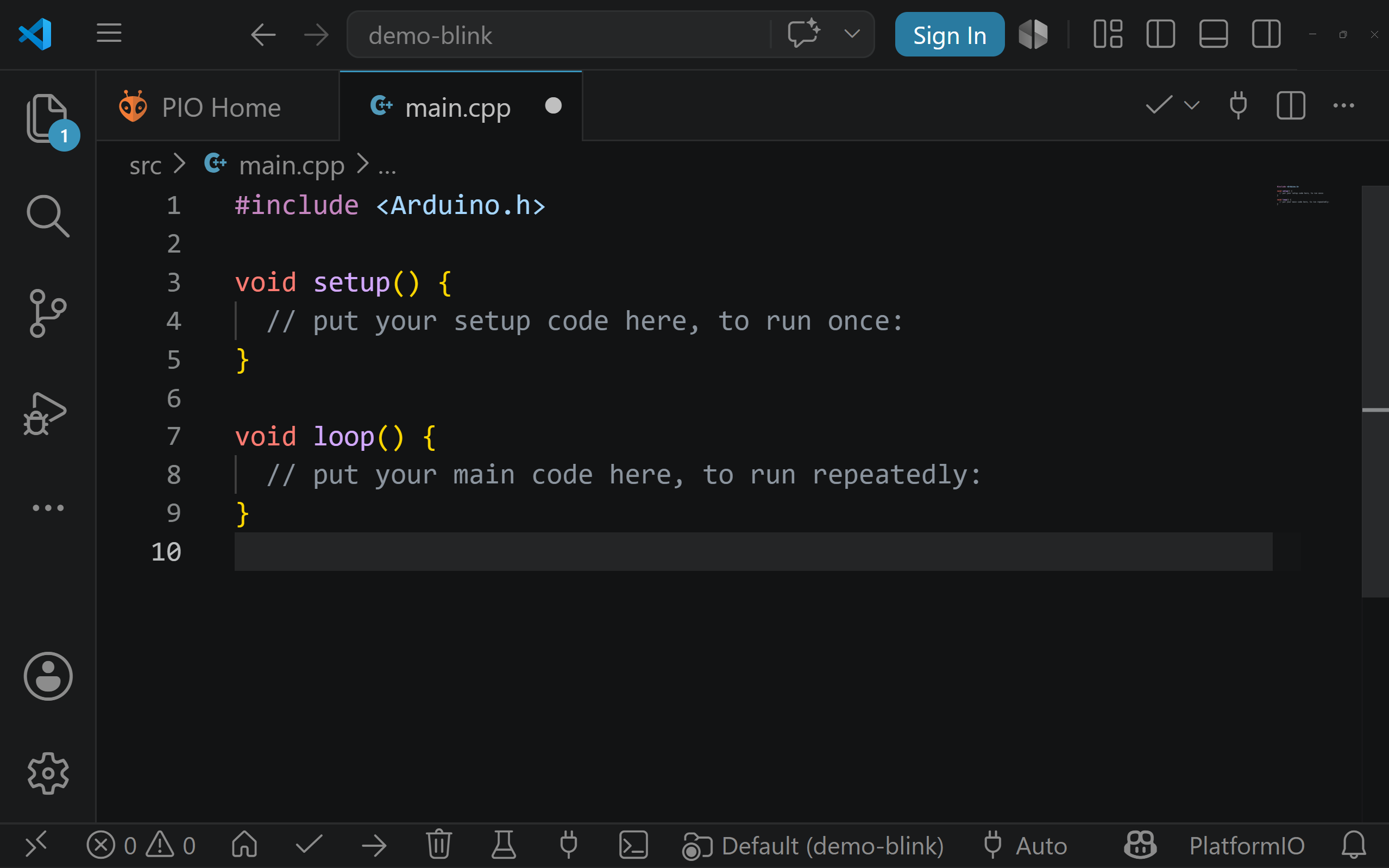
An Arduino program (refering to Arduino Framework) is organized around two functions: setup() and loop().
 |
|---|
| Minimal Arduino-style program structure. |
The same program can be written as:
#include <Arduino.h>

void setup() {

}

void loop() {

}
Although this program does not yet interact with any hardware, it is valid and can be compiled and uploaded to the ESP32.
The first line includes the Arduino framework:
#include <Arduino.h>
In PlatformIO, this include directive is normally written explicitly, although the Arduino IDE often hides it. It gives the program access to Arduino functions such as pinMode(), digitalWrite(), analogRead(), delay(), and Serial.begin(), which will be introduced and explained in this chapter.
The setup() function runs once whenever the microcontroller starts or resets:
void setup() {

}
After setup() finishes, the Arduino framework repeatedly calls the loop() function:
void loop() {

}
The instructions inside loop() continue to execute for as long as the microcontroller is powered. Unlike setup(), it does not run only once. A microcontroller usually waits for inputs, checks conditions, updates outputs, communicates with devices, and then repeats the same process again and again.
Although the minimal program above does not perform any visible action, it is still a valid program. It can be compiled and uploaded to the board. This is useful as a first test because it verifies that the toolchain, board selection, and upload connection are working before any circuit-specific code is introduced.
Compiling the Program
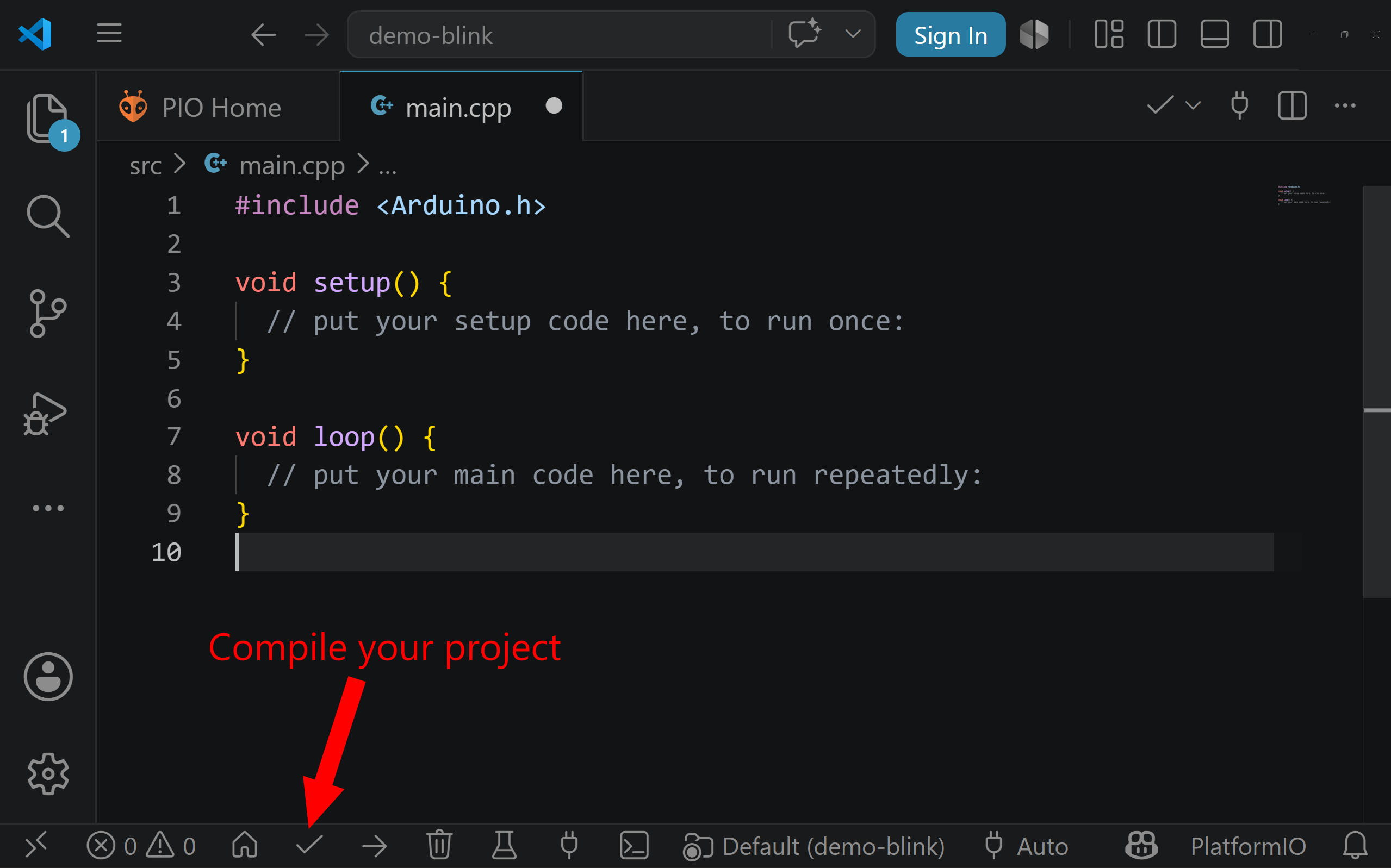
Before the program can be placed on the microcontroller, it must be compiled. In PlatformIO, compilation is usually started by clicking the Build button, represented by a check mark in the PlatformIO toolbar.
 |
|---|
| Compile code in platformio. |
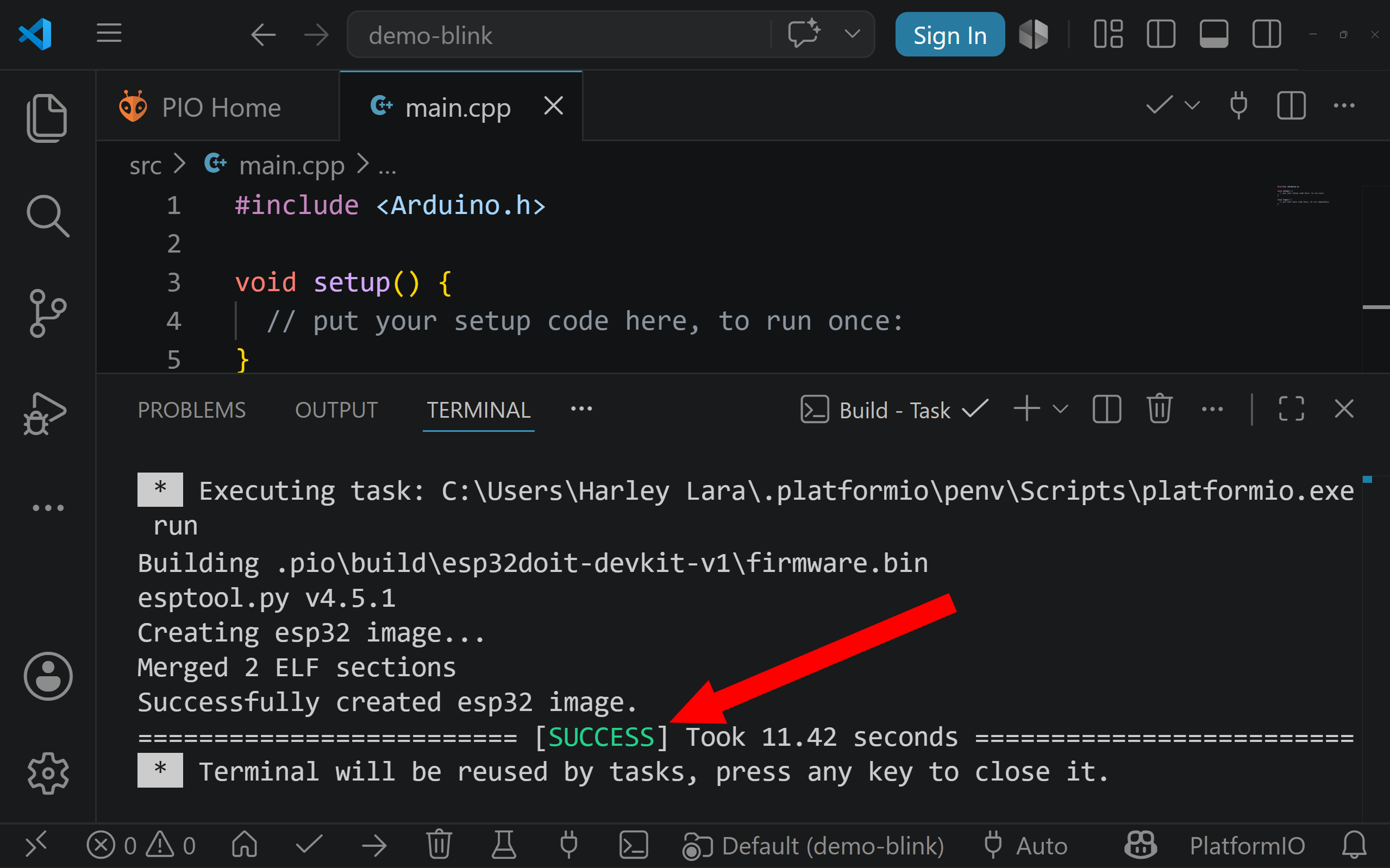
When the build process starts, PlatformIO reads the platformio.ini file and determines the selected board, platform, and framework. It then finds the source files in the src folder and passes them to the compiler. The compiler checks the syntax of the code, translates it into object files, and links it with the required framework libraries. If all steps succeed, PlatformIO creates a firmware file ready to be uploaded to the board.
 |
|---|
| Successfully compile code in platformio. |
If the program contains an error, the compilation fails. This does not damage the board. It simply means that PlatformIO could not produce valid firmware from the source code. The error message appears in the terminal panel at the bottom of VS Code. These messages can look difficult at first, but they usually contain useful information, including the file name, the line number, and the type of error.
A missing semicolon, for example, is a common beginner mistake:
digitalWrite(ledPin, HIGH)
The corrected version is:
digitalWrite(ledPin, HIGH);
A successful compilation means that the code is syntactically valid and can be converted into firmware for the selected board. It does not guarantee that the program logic is correct or that the circuit is wired properly. It only confirms that the program can be built.
Uploading the Program to the ESP32
After the program compiles successfully, the next step is to upload it to the ESP32 board. Connect the DOIT ESP32 DevKit to the computer using a USB cable. The cable must support data transfer. Some USB cables are designed only for charging and will not allow the computer to communicate with the board.
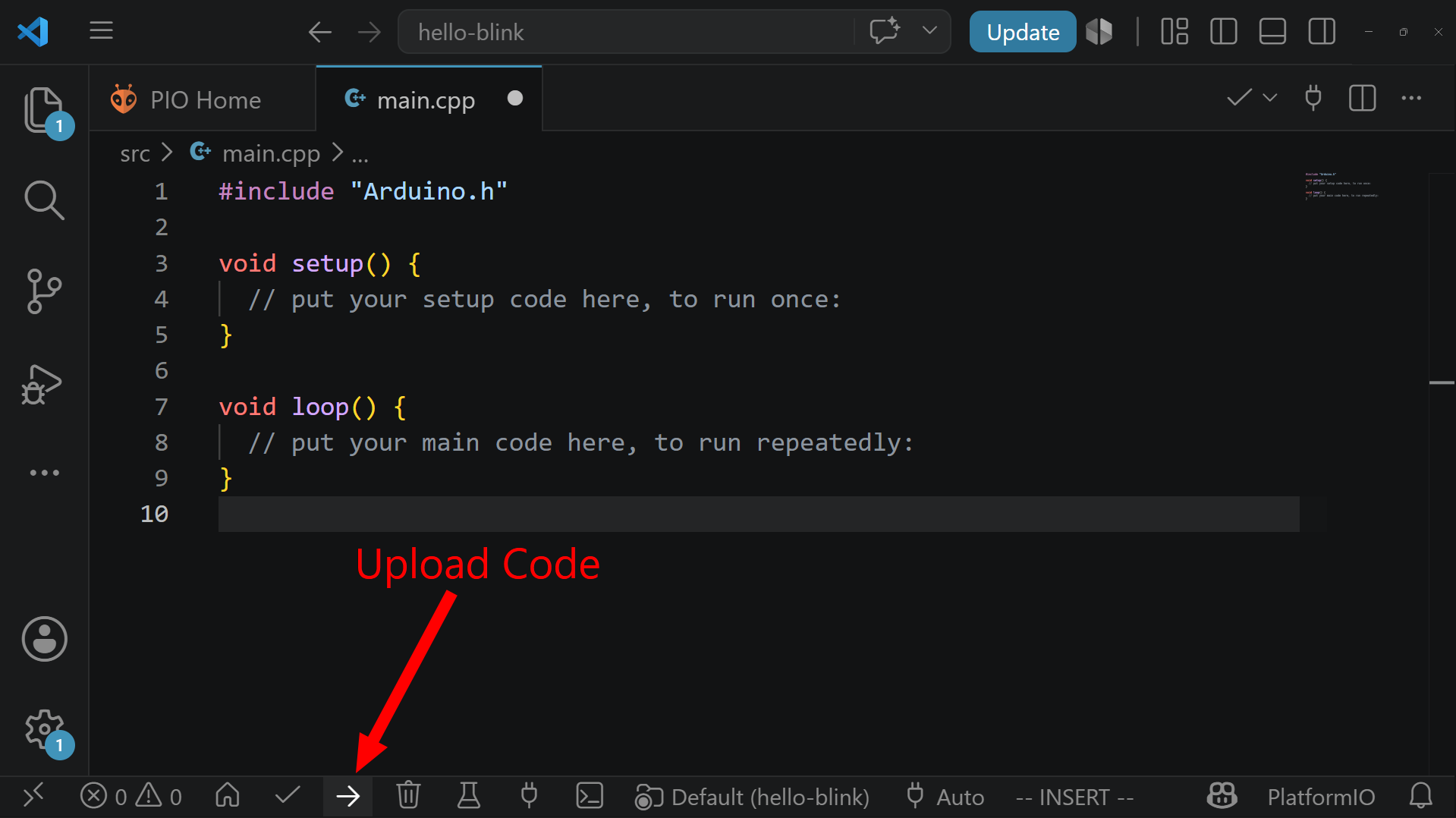
In PlatformIO, click the Upload button, usually represented by a right arrow. PlatformIO will compile the project if necessary, detect the serial port, place the ESP32 into programming mode, transfer the firmware, and reset the board so the new program starts running.
 |
|---|
| Upload code in platformio. |
If the upload fails, the problem is usually related to the connection, board selection, serial port, or USB driver. Check that the board is connected correctly and that the selected board in platformio.ini matches the board being used. Also check that no other program, such as a serial monitor, is already using the same port.
On some ESP32 boards, the automatic reset circuit does not always place the board into programming mode reliably. If this happens, hold the BOOT button on the board while the upload begins, then release it once the upload starts. This manually forces the ESP32 into the correct mode for flashing.
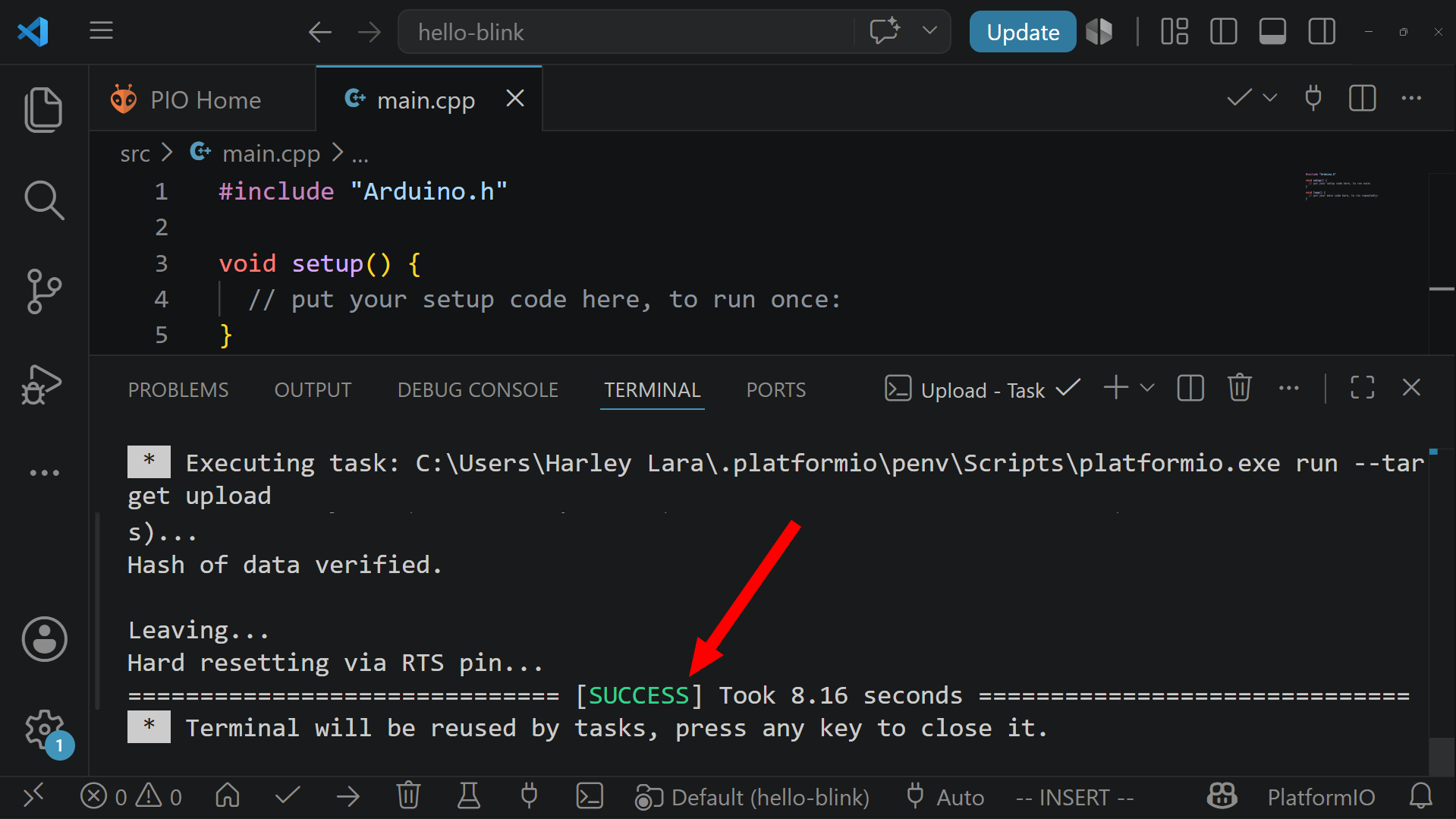 |
|---|
| Successful upload code in platformio. |
First Input Program: Button, LDR, and Potentiometer
A minimal program confirms that the ESP32 can be compiled and programmed, but it does not yet interact with the physical circuit. The next step is to read actual hardware inputs.
For this example, we will return to the circuit assembled in the Sensors and Signals chapter. That circuit contains:
- A push button connected as a digital input.
- A photoresistor, also called an LDR, connected through a voltage divider.
- A potentiometer connected as an adjustable voltage divider.
During the earlier exercise, the microcontroller was treated as a black box that collected measurements and sent them to the web terminal (the AMC Simple Web Terminal). We will now reconstruct that program incrementally and examine how each input is read.
The final program will produce three comma-separated values:
button_value,ldr_value,potentiometer_value
For example:
0,742,318
The exact analog values depend on the amount of light reaching the LDR and the position of the potentiometer.
Describing the Physical Connections
The program must know which GPIO pin is connected to each part of the circuit. These connections are defined near the beginning of the source file:
const int BUTTON_PIN       = 23;
const int LDR_PIN          = 15;
const int POTENTIOMETER_PIN = 4;
A declaration such as:
const int BUTTON_PIN = 23;
creates a named constant.
The name BUTTON_PIN describes the purpose of the value, while 23 identifies the physical GPIO connection. The keyword const means that the value is not expected to change while the program is running.
Using named constants is clearer than writing GPIO numbers directly throughout the program. It also makes the program easier to modify. If a component is later connected to a different pin, its GPIO number only needs to be changed in one location.
The pin definitions correspond to the earlier circuit:
| Component | Development-board label | GPIO function |
|---|---|---|
| Push button | D23 | Digital input |
| LDR voltage divider | D15 | Analog input, ADC2 channel 3 |
| Potentiometer wiper | D4 | Analog input, ADC2 channel 0 |
Configuring an Input with pinMode()
A GPIO pin can support several possible functions. Before using the button pin, the program should configure how that pin will behave.
The configuration is performed inside setup():
void setup() {
    pinMode(BUTTON_PIN, INPUT);
}
The function call has two arguments:
pinMode(pin, mode);
The first argument identifies the GPIO pin. The second argument selects its operating mode.
In this example:
pinMode(BUTTON_PIN, INPUT);
configures GPIO 23 as a digital input.
The button circuit already includes an external 10 kΩ pull-up resistor. This resistor keeps the input connected to 3.3 V when the button is not pressed. Pressing the button connects the signal to ground.
The resulting electrical and logical states are:
| Button condition | Input voltage | Result of digitalRead() |
|---|---|---|
| Released | Approximately 3.3 V | HIGH |
| Pressed | Approximately 0 V | LOW |
Without a pull-up or pull-down connection, the input could become electrically floating when the switch is open. A floating input does not have a reliably defined voltage and may appear to change state unpredictably.
The Arduino framework also provides the
INPUT_PULLUPmode, which enables an internal pull-up resistor. That mode is useful when the switch is connected to ground and no external pull-up resistor is present. The circuit used in this exercise already contains an external pull-up resistor, soINPUTdescribes the schematic more accurately.
Reading the Button with digitalRead()
After the pin has been configured, its current logic state can be read with digitalRead():
int rawButtonState = digitalRead(BUTTON_PIN);
The function has the following general form:
digitalRead(pin);
Its argument identifies the GPIO pin to be read. The function returns one of two predefined values:
HIGHLOW
For the pull-up circuit used in this exercise, the button is active-low:
| Button condition | Electrical state | digitalRead() result |
|---|---|---|
| Released | Approximately 3.3 V | HIGH |
| Pressed | Approximately 0 V | LOW |
This behavior follows directly from the circuit. When the button is released, the pull-up resistor connects the input to 3.3 V. When the button is pressed, the switch connects the input to ground.
Although the raw electrical state is correct, applications commonly represent an activated input with 1 and an inactive input with 0. The raw button state can therefore be converted with a comparison:
if (digitalRead(BUTTON_PIN) == LOW) {
  buttonValue = 1;
} else {
  buttonValue = 0;
}
The expression:
if (digitalRead(BUTTON_PIN) == LOW) {
  buttonValue = 1;
} else {
  buttonValue = 0;
asks whether the button input is currently at logic low.
The comparison produces:
1when the condition is true and the button is pressed.0when the condition is false and the button is released.
Do not confuse the assignment and comparison operators:
=    // Assigns a value
==   // Compares two values
The input-reading operation can now be added to the program:
#include <Arduino.h>

// GPIO connected to the push-button circuit.
const int BUTTON_PIN = 23;

void setup() {
    // Configure GPIO 23 as a digital input.
    // The circuit already contains an external pull-up resistor.
    pinMode(BUTTON_PIN, INPUT);
}

void loop() {
    // Read and interpret the active-low button signal.
    //
    // released -> HIGH -> 0
    // pressed  -> LOW  -> 1
    int buttonValue = (digitalRead(BUTTON_PIN) == LOW);
    delay(1000);
}
The ESP32 now reads the button every time loop() executes. However, the value is only stored inside the variable buttonValue. It is internal program data and cannot yet be observed from the computer.
The program therefore has no visible behavior, even though it is reading the physical input correctly. A method is needed to inspect values while the program is running.
Inspecting Program Values with the Serial Monitor
When developing an embedded program, it is often necessary to inspect information that exists only inside the microcontroller. Examples include:
- The current state of a button.
- A raw sensor measurement.
- The result of a calculation.
- The current stage of the program.
- Diagnostic information used while debugging.
The ESP32 can transmit this information to the computer through its serial connection. A serial monitor is a tool that displays the data received through that connection.
Serial communication must first be initialized inside setup():
Serial.begin(9600);
Serial.begin() configures the communication interface. Its argument specifies the baud rate, which describes the communication speed, in this example, the baud rate is 9600.
Serial.begin(baud_rate);
The serial monitor must be configured to use the same baud rate. If the program and the monitor use different settings, the received text may be unreadable or may not appear correctly.
After serial communication has been initialized, Serial.println() can be used to transmit a value:
Serial.println(buttonValue);
Serial.println() sends the value and then ends the line. Each subsequent value therefore appears on a new line in the serial monitor.
The button example can now be extended as follows:
#include <Arduino.h>

// GPIO connected to the push-button circuit.
const int BUTTON_PIN = 23;

void setup() {
    // Configure GPIO 23 as a digital input.
    // The circuit already contains an external pull-up resistor.
    pinMode(BUTTON_PIN, INPUT);

    // Start serial communication with the computer.
    // The serial monitor must use the same baud rate.
    Serial.begin(9600);
}

void loop() {
    // Read and interpret the active-low button signal.
    //
    // released -> HIGH -> 0
    // pressed  -> LOW  -> 1
    int buttonValue = (digitalRead(BUTTON_PIN) == LOW);

    // Send the interpreted button value to the computer.
    Serial.println(buttonValue);

    // Wait before taking and transmitting the next reading.
    // Without this delay, the program would produce many lines
    // of output every second.
    delay(1000);
}
The monitor should display 0 while the button is released, and 1 while the button is pressed.
The serial monitor does not control the button or perform the measurement. The measurement is performed by digitalRead() on the ESP32. The serial monitor only makes the resulting program value visible on the computer.
Only one serial terminal should be connected to the ESP32 at a time. Close the PlatformIO Serial Monitor before connecting through the web terminal, or disconnect the web terminal before opening the PlatformIO monitor.
Reading Analog Inputs with analogRead()
The push button produces a digital signal with two interpreted states. The LDR and potentiometer instead produce continuously variable voltages. To process these voltages in software, the ESP32 uses its analog-to-digital converter, or ADC.
The ADC and its fundamental concepts, including sampling, quantization, and resolution were introduced in From Analog to Digital in the Sensors and Signals chapter. Recall that the ADC converts a measured analog voltage into a numerical value that the program can store and process.
The Arduino framework provides the analogRead() function to perform this measurement:
int value = analogRead(pin);
The argument identifies the GPIO pin connected to the analog signal. When the function is called, the ESP32 samples the voltage on that pin and returns its digital representation as a raw ADC value.
For the ESP32 used in AMC, analogRead() uses a 12-bit result by default:
0 to 4095
A value near 0 represents a voltage near the lower end of the measurable range. A value near 4095 represents a voltage near the upper end of the measurable range.
These numbers are raw ADC values. They are not automatically expressed in volts, resistance, potentiometer position, or light intensity. Their physical meaning depends on the connected circuit and sensor.
ADC Resolution Configuration
The Arduino-ESP32 framework automatically uses a 12-bit ADC resolution by default. Consequently, no additional resolution configuration is required before using analogRead().
The following is sufficient:
void loop() {
    int ldrValue = analogRead(LDR_PIN);
    int potentiometerValue = analogRead(POTENTIOMETER_PIN);
}
The Arduino framework also provides the optional function:
analogReadResolution(12);
This function explicitly selects the ADC resolution. However, setting it to 12 bits does not change the behavior of this example because 12 bits is already the default for the ESP32.
It can therefore be safely omitted:
void setup() {
    Serial.begin(9600);

    // No ADC resolution configuration is required.
    // Arduino-ESP32 uses 12-bit readings by default.
}
Explicitly setting the resolution may still be useful when a program deliberately requires a different resolution, when code is transferred between development boards, or when the selected numerical range should be documented and enforced directly in the program.
For the introductory examples in this chapter, the default configuration is sufficient. This keeps the program focused on the essential operation: reading an analog input with analogRead().
ADC resolution and default behavior are board-dependent. The
0to4095range described here applies to the ESP32 configuration used in AMC and should not be assumed for every Arduino-compatible board.
Reading the LDR
The LDR is part of a voltage-divider circuit connected to GPIO 15. Its output voltage can be sampled with:
int ldrValue = analogRead(LDR_PIN);
The function call:
analogRead(LDR_PIN)
performs one analog-to-digital conversion on the GPIO represented by LDR_PIN.
Changing the amount of light reaching the LDR changes its resistance. Because the LDR is part of a voltage divider, this resistance change also changes the voltage connected to the ESP32 input. The ADC converts that voltage into a raw numerical value.
The variable is called ldrValue, rather than lightLevel, because the result is only a raw ADC measurement. It has not yet been converted into a physical unit such as lux.
Reading the Potentiometer
The potentiometer wiper is connected to GPIO 4. Its voltage is read in the same way:
int potentiometerValue = analogRead(POTENTIOMETER_PIN);
Rotating the potentiometer changes the voltage at its wiper. The ADC converts this voltage into a raw value between approximately 0 and 4095.
The LDR and potentiometer respond to different physical inputs:
- The LDR responds to incident light.
- The potentiometer responds to mechanical rotation.
However, both circuits present the microcontroller with the same type of electrical signal: a variable voltage. The program can therefore read both devices using analogRead().
The analog-input portion of the program is:
#include <Arduino.h>

// Analog input pins
const int LDR_PIN = 15;
const int POTENTIOMETER_PIN = 4;

void setup() {
    // Start serial communication with the computer.
    Serial.begin(9600);

    // No ADC resolution configuration is required.
    // Arduino-ESP32 uses 12-bit readings by default.
}

void loop() {
    // Read the raw ADC value produced by the LDR voltage divider.
    int ldrValue = analogRead(LDR_PIN);

    // Read the raw ADC value produced by the potentiometer.
    int potentiometerValue = analogRead(POTENTIOMETER_PIN);
}
At this stage, the two measurements are stored in variables inside the microcontroller. The next step is to transmit them through the serial connection so that their values can be inspected on the computer.
Sending Several Values as CSV Data
The program now has three values:
buttonValue
ldrValue
potentiometerValue
They must be transmitted in the same order used in the Sensors and Signals exercise:
button_value,ldr_value,potentiometer_value
This can be produced using a sequence of Serial.print() and Serial.println() calls:
Serial.print(buttonValue);
Serial.print(",");
Serial.print(ldrValue);
Serial.print(",");
Serial.println(potentiometerValue);
Serial.print() writes data without automatically moving to a new line. This allows the commas and values to be assembled as one record.
Serial.println() writes the final value and then ends the line. The next execution of loop() therefore begins a new CSV record.
For example, the instructions may produce:
0,742,318
1,744,320
0,751,319
Each row represents one sampling instant.
Complete Input Program
The following is the complete program used to read the circuit from the Sensors and Signals exercise:
#include <Arduino.h>

/*
 * Digital and analog input example
 *
 * This program reads:
 *   1. A push button as a digital input.
 *   2. An LDR voltage divider as an analog input.
 *   3. A potentiometer as an analog input.
 *
 * One CSV record is sent through the serial connection every second:
 *
 *   button_value,ldr_value,potentiometer_value
 */

// GPIO connected to the push-button circuit.
const int BUTTON_PIN = 23;

// ADC-capable GPIO connected to the LDR voltage divider.
// GPIO 15 corresponds to ADC2 channel 3 on the ESP32.
const int LDR_PIN = 15;

// ADC-capable GPIO connected to the potentiometer wiper.
// GPIO 4 corresponds to ADC2 channel 0 on the ESP32.
const int POTENTIOMETER_PIN = 4;

/*
 * Configure the hardware interfaces.
 *
 * setup() runs once when the ESP32 starts or resets.
 */
void setup() {
    // Start serial communication with the computer.
    // The serial terminal must use the same baud rate.
    Serial.begin(9600);

    // Configure the button GPIO as an input.
    // The exercise circuit already contains an external 10 kΩ pull-up.
    pinMode(BUTTON_PIN, INPUT);
}

/*
 * Read the inputs and transmit one CSV record.
 *
 * loop() repeats continuously while the ESP32 is powered.
 */
void loop() {
    // Read the digital button input.
    //
    // Because the button uses a pull-up circuit:
    //   released -> HIGH
    //   pressed  -> LOW
    //
    // Comparing the raw state with LOW converts the result to:
    //   released -> 0
    //   pressed  -> 1
    int buttonValue = (digitalRead(BUTTON_PIN) == LOW);

    // Read the raw 12-bit ADC values.
    //
    // These values represent measured input voltages.
    // They are not yet converted into physical units.
    int ldrValue = analogRead(LDR_PIN);
    int potentiometerValue = analogRead(POTENTIOMETER_PIN);

    // Send the values as one comma-separated record:
    //
    // button_value,ldr_value,potentiometer_value
    Serial.print(buttonValue);
    Serial.print(",");
    Serial.print(ldrValue);
    Serial.print(",");
    Serial.println(potentiometerValue);

    // Produce one complete set of readings per second.
    delay(1000);
}
The program follows the same repeated sequence used by many embedded applications:
read the digital input
→ read the analog inputs
→ format the measurements
→ transmit the data
→ wait
→ repeat
Working With Libraries
Currently you have only tried compilling and uploading an empty code to the microcontroller, and has been given a first visible program (Blink) and serial monitor using only the built-in functions provided by the Arduino framework such as digitalWrite(), Serial.println(), and delay(). These cover the basics, but when working with more complex components such as digital sensors, writing all the necessary low-level communication code from scratch would be time-consuming and error-prone.
This is where libraries come in. A library is a collection of pre-written code that handles the low-level details of a specific component or protocol, exposing a clean, simple interface for you to use in your own programs. Rather than implementing the full communication protocol for a sensor yourself, you include the appropriate library and call its functions directly.
In this section, you will learn how to search for, install, and use libraries in PlatformIO. You will then write and test programs for two different digital sensors, each using a different communication protocol.
Required Core Kit Components
- Breadboard
- Microcontroller
- USB A to Micro B cable
- 4.7k resistor set
- Jumper cables
Additional Components (will be provided during the lecture):
- I2C sensor (BMP280 - Barometric and Temperature Sensor)
- 1-Wire sensor (DS18B20 temperature sensor)
Before you start:
Both sensors must be wired on the breadboard before programming begins. The complete circuit for this section is shown below.
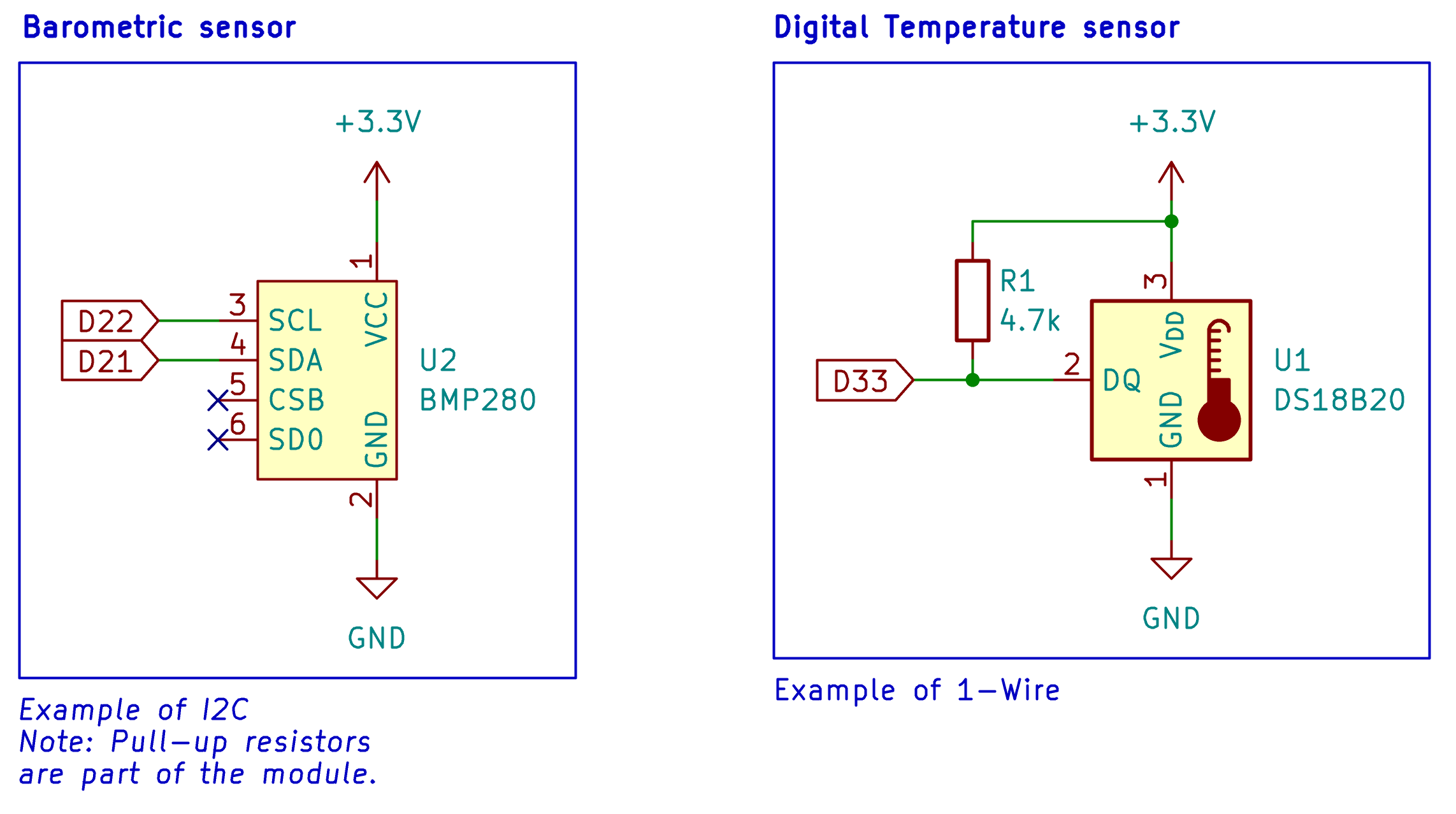 |
|---|
| Full circuit with both sensors assembled on the breadboard. |
Important wiring notes:
- The DS18B20 requires a 4.7 kΩ pull-up resistor connected between its data line and the 3.3 V supply. Without this resistor, the 1-Wire bus will not function correctly and the sensor will return errors.
- The BMP280 communicates over I2C, which uses two shared lines: SDA (data) and SCL (clock). Connect these to the corresponding SDA and SCL pins on your microcontroller.
Wire the complete circuit as shown above before proceeding.
Setting Up a New Project
Open PlatformIO Home and click Open to access the main PlatformIO menu.
 |
|---|
| Open the PlatformIO main menu. |
From the PlatformIO Home screen, create a new project by clicking New Project.
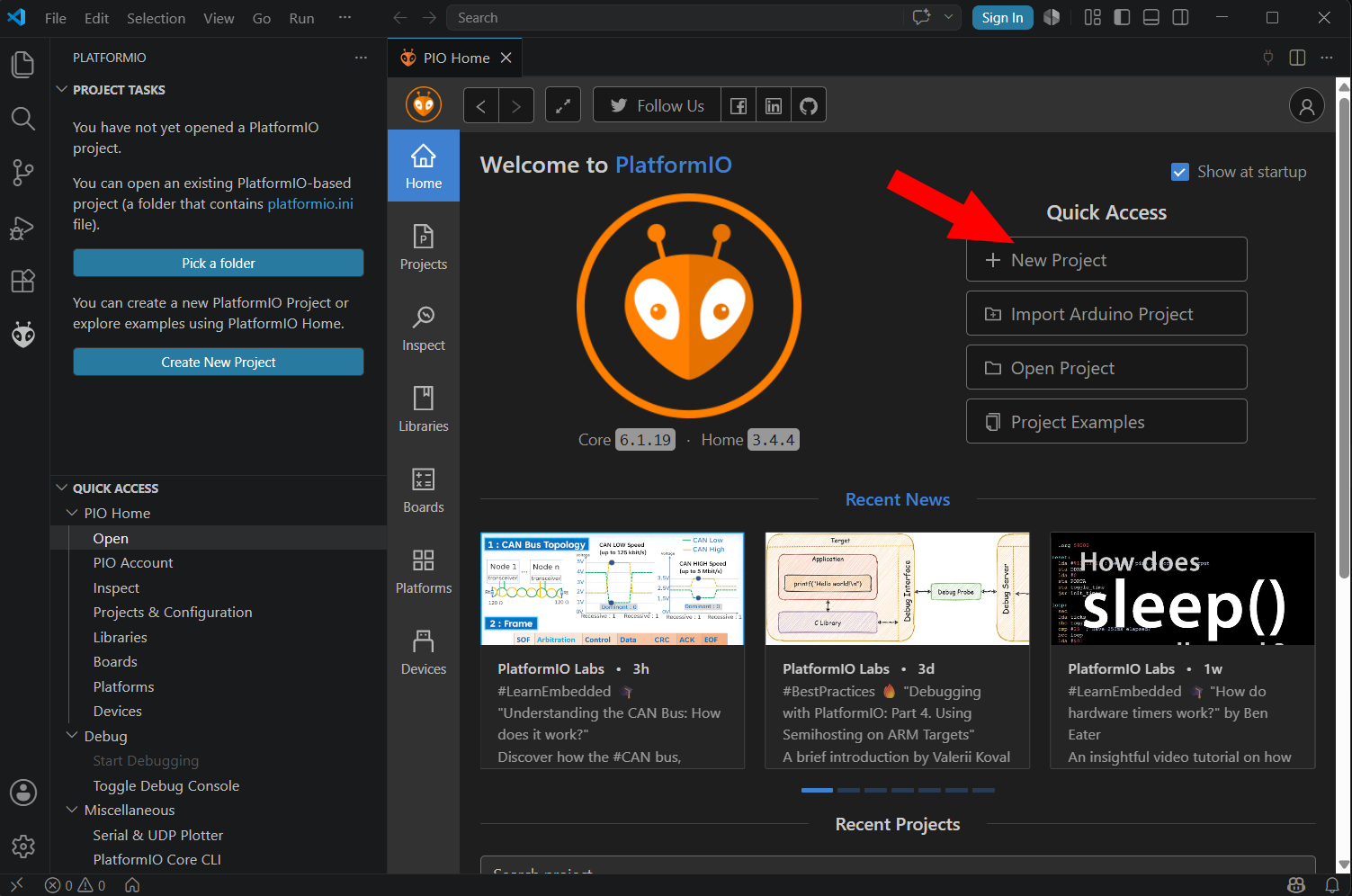 |
|---|
| Create a new PlatformIO project. |
Name the project hello-libraries. Use the same board and framework selection as in the previous sections.
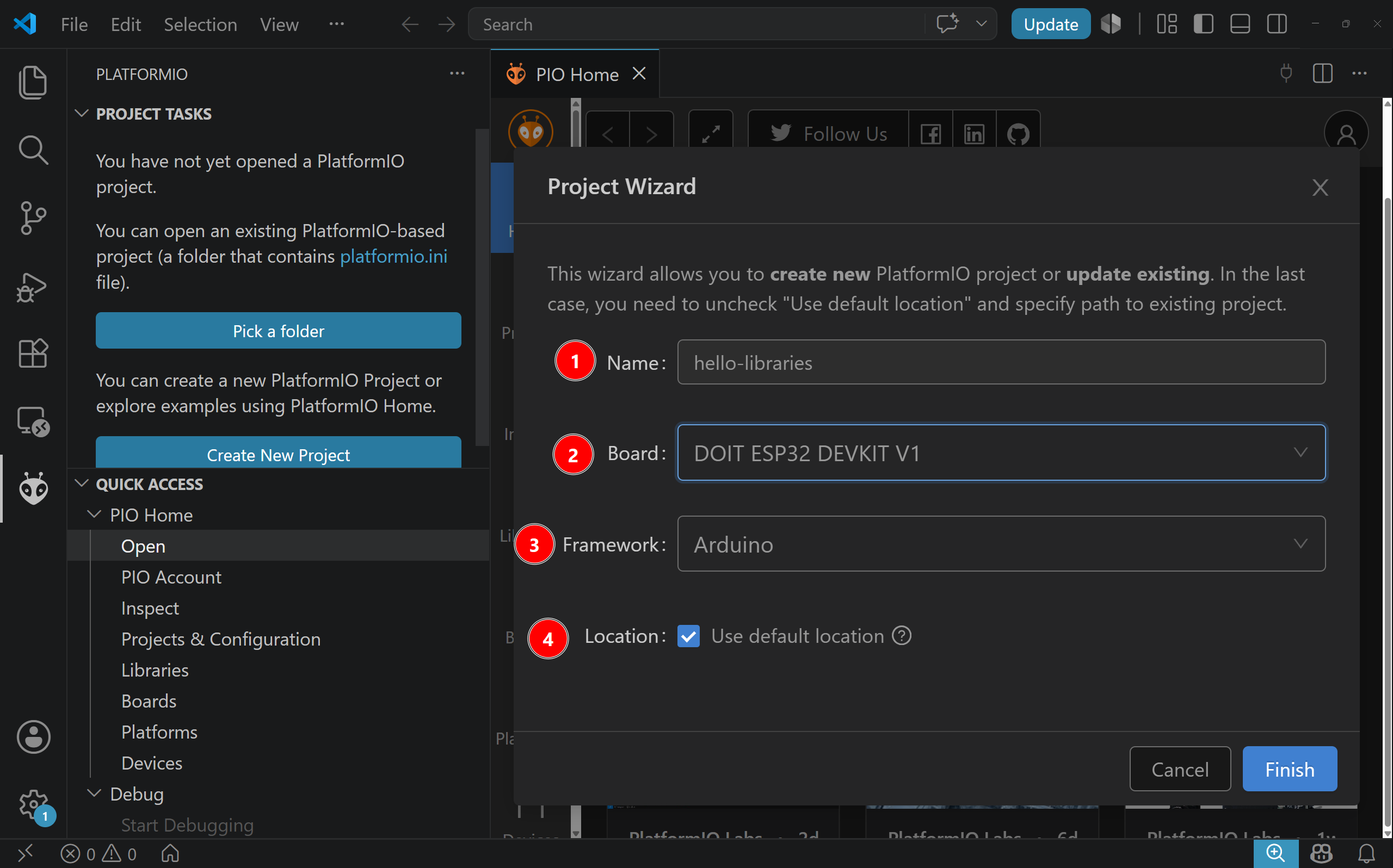 |
|---|
| PlatformIO project setup wizard. |
Click Finish. You will notice this project opens faster than your first one — because you are using the same platform, the required build tools are already installed on your machine and do not need to be downloaded again.
Searching and Installing Libraries
PlatformIO provides a built-in library manager that lets you search for and install libraries directly from the editor. Libraries are automatically added to your project configuration file (platformio.ini) so that PlatformIO knows to include them during compilation.
Open PlatformIO Home and click Libraries.
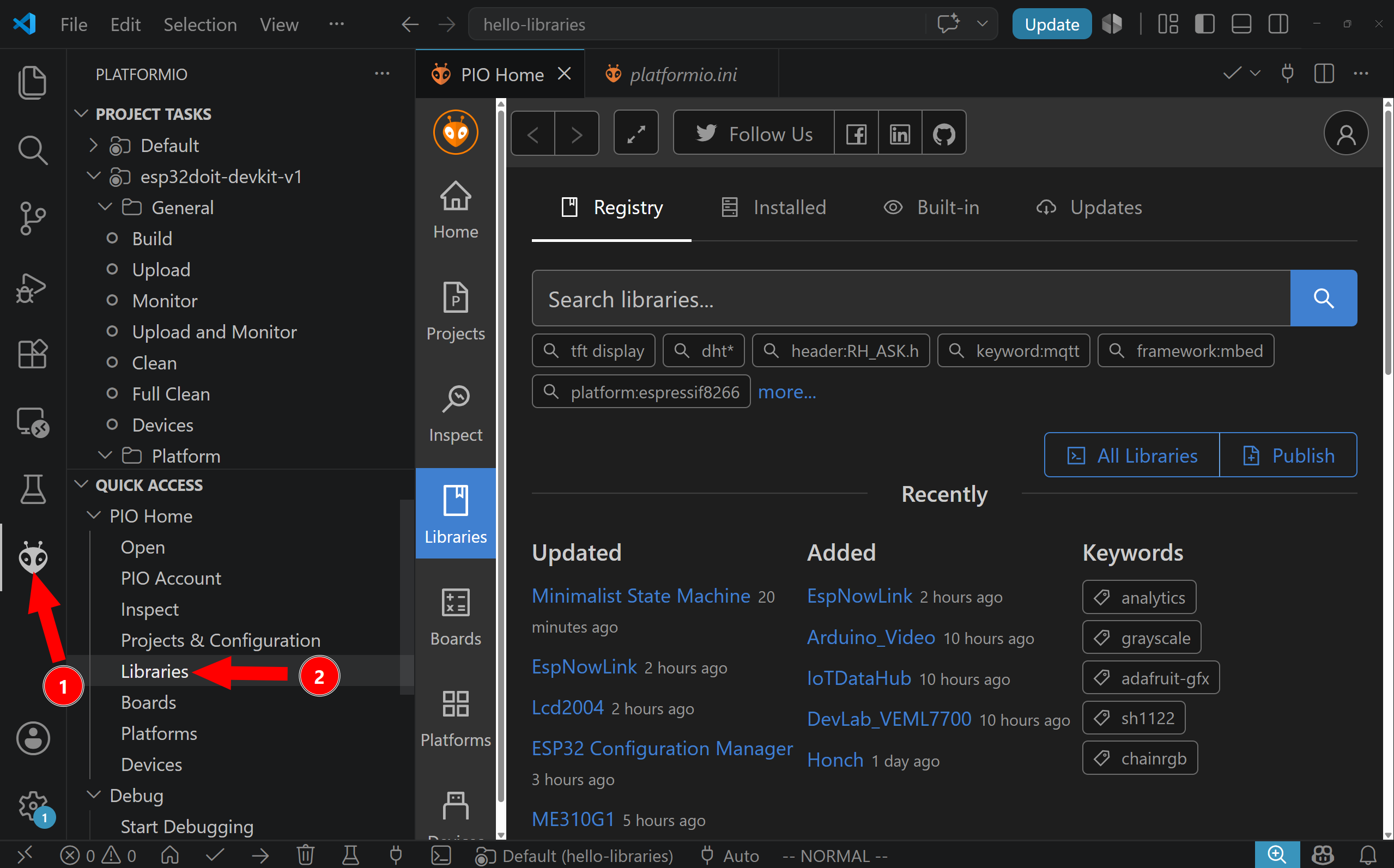 |
|---|
| The PlatformIO Libraries menu. |
Installing the DallasTemperature Library (for DS18B20)
In the search bar, type DallasTemperature and press Enter.
Select the DallasTemperature library by Miles Burton from the search results.
Click Add to Project.
A pop-up window will ask you to select which project to add the library to. Select hello-libraries and click Add.
Note: The DallasTemperature library depends on another library called OneWire, which handles the low-level 1-Wire communication protocol. PlatformIO detects this dependency automatically and installs OneWire alongside DallasTemperature — you do not need to search for it separately. You can verify this by opening
platformio.iniand checking that both libraries appear underlib_deps.
Installing the BMP280 Library
Go back to the Libraries search bar and search for BMP280 arduino library. Scroll through the results until you find BMP280 by mahfuz195, then add it to the hello-libraries project using the same steps as above.
This library provides a simple interface for reading temperature, pressure, and altitude data from the BMP280 sensor over I2C.
Understanding What Was Installed
+After adding both libraries, open platformio.ini from the root of your project. You should see something similar to the following under your environment settings:
[env:your_board]
platform = ...
board = ...
framework = arduino
lib_deps =
    milesburton/DallasTemperature @ ^3.11.0
    paulstoffregen/OneWire @ ^2.3.7
    mahfuz195/BMP280 @ ^1.0.2
These entries tell PlatformIO exactly which libraries — and which versions — your project requires. If you share your project with a classmate or move it to another computer, PlatformIO will automatically download all listed libraries. This is one of the key advantages of PlatformIO over the classic Arduino IDE.
Programming the DS18B20 (1-Wire Sensor)
Open main.cpp inside the src folder of your project.
Replace the contents of main.cpp with the following program:
// Include the libraries needed for the DS18B20
#include <OneWire.h>
#include <DallasTemperature.h>

// Define the pin connected to the DS18B20 data line
#define ONE_WIRE_BUS 2

// Create a OneWire instance on the defined pin
// This handles the low-level 1-Wire communication protocol
OneWire oneWire(ONE_WIRE_BUS);


// Pass the OneWire instance to the DallasTemperature library
// This gives the library access to the bus to communicate with the sensor
DallasTemperature sensors(&oneWire);

void setup(void)
{
  Serial.begin(9600);
  Serial.println("DS18B20 Temperature Sensor Demo");

  // Initialise the sensor library and scan the 1-Wire bus
  sensors.begin();
}

void loop(void)
{
  // Request a temperature reading from all sensors on the bus
  // This triggers the sensor to start its internal conversion
  Serial.print("Requesting temperature... ");
  sensors.requestTemperatures();
  Serial.println("Done.");

  // Wait for conversion to complete

  delay(1500);

  // Read the temperature from the first sensor found (index 0)
  float tempC = sensors.getTempCByIndex(0);

  // Check if the reading was successful
  if (tempC != DEVICE_DISCONNECTED_C)

  {
    Serial.print("Temperature: ");
    Serial.print(tempC);
    Serial.println(" °C");
  }
  else
  {
    Serial.println("Error: Could not read temperature. Check wiring and pull-up resistor.");
  }
}
Programming the BMP280 (I2C Sensor)
Once you have verified the DS18B20 is working, clear main.cpp and replace it with the following program for the BMP280:
#include "BMP280.h"
#include "Wire.h"

// Standard sea-level pressure in hPa, used for altitude calculation

#define P0 1013.25

BMP280 bmp;


void setup()
{
  Serial.begin(9600);

  // Attempt to initialise the BMP280 over I2C
  if (!bmp.begin())
  {
    Serial.println("BMP280 initialisation failed. Check wiring and I2C address.");
    // Halt execution — no point continuing if the sensor is not found
    while (1);
  }

  Serial.println("BMP280 initialisation successful.");

  // Set the oversampling rate for pressure readings
  // Higher values give more accurate results at the cost of slower readings
  bmp.setOversampling(4);
}

void loop()
{
  double T, P;

  // Start a measurement and get the required delay in milliseconds
  char result = bmp.startMeasurment();

  if (result != 0)
  {
    // Wait for the measurement to complete
    delay(result);

    // Read the temperature (°C) and pressure (mBar) from the sensor
    result = bmp.getTemperatureAndPressure(T, P);


    if (result != 0)
    {
      // Calculate altitude from pressure relative to sea-level reference
      double A = bmp.altitude(P, P0);
      Serial.print("Temperature: ");
      Serial.print(T, 2);
      Serial.print(" °C  |  Pressure: ");
      Serial.print(P, 2);
      Serial.print(" mBar  |  Altitude: ");
      Serial.print(A, 2);
      Serial.println(" m");
    }
    else
    {
      Serial.println("Error: Failed to read temperature and pressure.");
    }
  }
  else
  {
    Serial.println("Error: Failed to start measurement.");
  }

  delay(1000);
}
Common Problems During First Setup
The first setup of a microcontroller development environment can fail for several reasons. Compilation errors usually come from the source code. Upload errors usually come from the board connection, port configuration, or driver installation.
If compilation fails, read the terminal output carefully. Look for the first error message rather than the last one. A single syntax error can cause many additional messages, so the first reported problem is often the most useful one.
If upload fails, first check the USB cable. A charge-only cable is a common cause of failure because the board may receive power but cannot exchange data with the computer. Then check that the correct board is selected in platformio.ini. If the serial port is busy, close any open Serial Monitor or other application that may be using the board.
If the upload completes but the program does not behave as expected, check the GPIO number, the wiring, the polarity of components such as LEDs, and whether all parts of the circuit share a common ground. In microcontroller projects, software and hardware mistakes often look similar at first, so both must be inspected.
Good Development Practice
Microcontroller programs should be developed incrementally. Start with a minimal program that compiles and uploads successfully. Then add one feature at a time. For example, first blink an LED. Then read a button. Then use the button to control the LED. Then add serial output. Each step should be tested before continuing.
This approach reduces the number of possible causes when something goes wrong. If a program worked before one small change and failed afterward, the new change is probably related to the problem.
Clear names also matter. A program using names such as buttonPin, ledPin, and sensorValue is easier to understand than one using names such as x, y, and z. In embedded systems, readable names help connect the program to the physical circuit.
For example:
const int buttonPin = 4;
const int ledPin = 2;
is clearer than:
const int x = 4;
const int y = 2;
The first version shows the purpose of each pin directly. This becomes increasingly important as circuits become larger and programs become longer.
Summary
Programming a microcontroller involves more than writing code. The program must be written for the correct board, compiled with the correct framework, uploaded through the correct connection, and tested on real hardware. The development process combines software reasoning with circuit reasoning.
In AMC, the standard workflow uses VS Code, PlatformIO, the Arduino framework, and the DOIT ESP32 DevKit. VS Code provides the editor, PlatformIO manages the embedded development tools, the Arduino framework provides a practical programming interface, and the ESP32 board executes the uploaded program.
The foundation of an Arduino-style program is the pair of functions setup() and loop(). The setup() function runs once when the board starts, while the loop() function runs continuously afterward. This structure reflects the way many embedded systems operate: initialize the hardware, then repeatedly read inputs, process information, and update outputs.
Once this workflow is understood, the microcontroller becomes a programmable part of the circuit. It can read physical signals, make decisions in software, and control electronic components in response.